A Practical Guide to Download Photos From Instagram

Ever found a fantastic photo on Instagram you wish you could save? It's not as simple as a right-click and "Save Image As," but don't worry—there are a handful of solid ways to get it done. Whether you need a single image for a mood board or want to back up your entire profile, there's a method that fits.
Why Bother Downloading Instagram Photos?
Before we jump into the "how," let's talk about the "why." Saving an Instagram photo isn't just about hoarding pretty pictures; it's often a smart move in a creative or business workflow. For brands and creators, it’s a way to turn visual content into a real asset.

Unlocking Creative and Strategic Value
Think about it from a practical standpoint. Maybe you’re a content creator pulling inspiration for a new campaign. Saving top-performing posts from others in your niche helps you spot trends and fine-tune your own approach. Or, you could be an e-commerce manager who just got the green light to use an amazing photo a customer tagged you in. Downloading that image is the first step to showcasing authentic user-generated content (UGC) on your website.
This simple act can be a game-changer for your business:
- Archiving Key Assets: Keep a high-quality copy of your best posts or campaign visuals for your portfolio or internal records.
- Repurposing Content: Easily grab your own photos to reuse in email campaigns, on other social media channels, or for your blog.
- Building a Strong Brand Identity: Analyzing the visuals that connect with your audience is crucial when you're learning how to create your own brand.
The whole point is to shift from just scrolling through content to actively using it. Saving a photo is often the first step in turning a fleeting idea into a concrete piece of your strategy.
The Power of Visual Storytelling
Instagram is a goldmine of visual data, and its growth is mind-boggling. In 2023, it was the most downloaded app in the world, hitting an incredible 696 million downloads. That’s a clear sign of how much we all crave visual stories.
With over a billion images shared every day, each one can offer a tiny piece of market research for marketers who are paying attention. You can learn more about Instagram's massive growth on analyzify.com.
Using Instagram’s Official Data Download Tool
If you're looking for the most secure, official way to download your own content, Instagram’s built-in tool is your best bet. It’s a feature called "Download Your Information," and it’s essentially a personal archive service. It lets you request a complete copy of everything you've ever shared.
Think of it as your entire Instagram history—photos, videos, comments, DMs, profile info—all bundled up and delivered straight from the source. For creating a comprehensive backup of your digital life on the platform, this is hands-down the most reliable method.
How to Request Your Data Archive
The process is pretty simple, whether you're on your phone or a computer. Just be prepared to wait a bit, as Instagram needs time to bundle everything up for you.
- On the Mobile App: Head to your profile page and tap the menu icon (the three horizontal lines). From there, go to Your Activity and look for Download your information.
- On a Desktop Browser: Click the More option in the bottom-left menu, then navigate to Settings > Accounts Center. Under the Account Settings section, you'll find Your information and permissions, where you can select Download your information.
You’ll have the option to grab a complete copy of everything or just select specific types of data, like only your photos and videos. Once you submit the request, the clock starts ticking.
A heads-up on timing: This isn't an instant download. Instagram says it can take up to 14 days to compile your data, but in my experience, the link usually lands in your inbox within 48 hours.
What You Get in the Download
You'll get an email from Instagram as soon as your file is ready. It contains a download link that's only active for a few days for security reasons, so don't put off downloading it.
The data arrives as a ZIP file. Once you decompress it, you’ll find everything neatly organized into folders, often sorted by date. The best part? Your photos and videos are in the same resolution you originally uploaded them, which is a huge plus for getting high-quality copies.
But this method isn't for everyone. It’s an all-or-nothing deal, making it completely impractical if you just want to save a single photo from your feed. The wait time and the hassle of digging through a massive archive are real downsides for quick, one-off tasks.
Ultimately, this tool is perfect for a full account backup, not for grabbing individual images on the fly. You're trading speed and convenience for total security and completeness.
Saving Photos Directly from Your Browser
Sometimes you just need to grab one specific, high-quality photo from Instagram without the hassle of installing software or using a third-party site. In those cases, your web browser is actually the best tool for the job. By using a feature often called "Inspect Element," you can peek behind the curtain at a page's code and pull the direct link to the image file.
It sounds a bit technical, I know, but you don't need to be a developer to make this work. This is my go-to method when I need a single high-resolution asset fast. It lets you bypass other tools and download the image straight from Instagram's servers, ensuring you get the best quality possible.
Finding the Image Source Code
All modern browsers—Chrome, Firefox, Safari, you name it—come with developer tools built right in. These tools show you the HTML and CSS that make a webpage look the way it does. We're just going to use them to find a hidden link.
The steps are pretty much the same no matter which browser you prefer:
- Go to the specific Instagram post you want the photo from.
- Right-click right on top of the image.
- In the menu that pops up, choose Inspect or Inspect Element.
A new panel will slide open, typically on the right side or bottom of your browser, showing a bunch of code. Don't let it intimidate you! Your browser is smart enough to automatically highlight the exact line of code for the image you just clicked.
What I love about this method is how direct it is. You're cutting out the middleman and interacting with the page's structure to download photos from Instagram in their original quality. It’s clean, fast, and gives you total control.
Locating and Saving the Photo URL
With the developer panel open, your mission is to find the image's source URL. Think of this as the direct address for the photo file living on Instagram's servers. The highlighted code is your treasure map. You're looking for a link that ends in a file extension like .jpg or .webp.
Here’s a look at what the Elements panel in Chrome's Developer Tools looks like. This is where you'll be doing your digging.
This is the raw HTML of the page, and that highlighted section is where you’ll find the link you need.
Sometimes, the image link is buried inside a few nested <div> tags. If you don't see it right away, just click the little arrows next to the <div> elements in the highlighted area to expand them. Eventually, you'll uncover an <img> tag with the URL.
Once you spot it, just double-click the link to select it, copy it, and paste it into a new browser tab. The photo will appear all by itself. From there, it's the familiar process: right-click and hit Save Image As to download it straight to your computer.
Choosing a Safe Third-Party Downloader
Diving into third-party tools to download Instagram photos can be a bit of a gamble. Search for one, and you'll find a dizzying number of websites, browser extensions, and mobile apps all claiming to do the same thing. The problem is, they aren't all created equal, and some can be downright risky. The main goal here is to find a reliable tool that gets the job done without putting your account or personal data at risk.
The single biggest red flag? Any service that asks for your Instagram login details. Let me be clear: there is absolutely no reason a tool needs your password to save a public photo. Handing over your credentials gives them the keys to your entire account, which is a recipe for disaster. Always, always stick to tools that work with just the URL of the Instagram post.
This quick decision tree can help you figure out the best path forward.
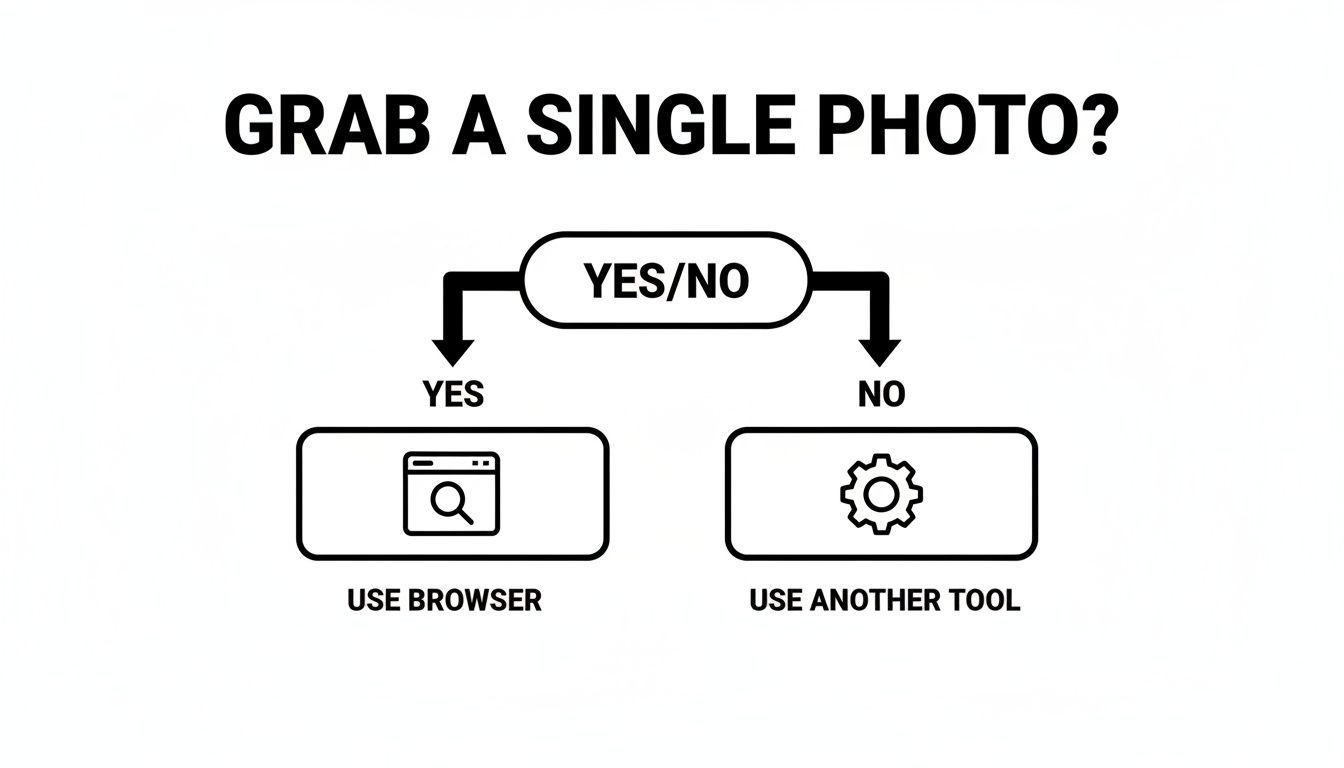
As you can see, if you just need to grab a single photo quickly, using your browser's built-in tools is often the simplest and safest bet.
Comparing Instagram Photo Download Methods
To make it even clearer, here’s a quick look at the most common ways to download Instagram photos, highlighting the best use case for each.
| Method | Best For | Pros | Cons |
|---|---|---|---|
| Official Instagram Download | Backing up your entire account data | Comprehensive and secure | Slow; not ideal for single photos |
| Browser Developer Tools | Grabbing a single photo quickly | Safe, no third-party tools needed | Requires a few technical steps |
| Third-Party Apps & Websites | Bulk downloads or ease of use | Fast and convenient | Potential security and privacy risks |
| Screenshots/Screen Recording | The absolute quickest, lowest-quality save | Instant and simple | Lower resolution; includes UI elements |
This table should help you match the right method to what you're trying to accomplish, saving you time and keeping your account secure.
How to Vet Potential Tools
Before you commit to any third-party service, do a little homework. A few minutes of due diligence can save you a world of hurt down the road.
A good first step is to check for recent, legitimate user reviews. Look on places like the Chrome Web Store, the App Store, or even tech forums. If you see a pattern of complaints about excessive ads, malware, or the tool just not working, that’s your cue to move on.
Next, take a look at the tool’s privacy policy. Any reputable service will be upfront about what data it collects and how it uses it. If there's no privacy policy to be found, that's a major warning sign. Don't forget, with Instagram hitting 696 million downloads in 2023, the market for these tools is huge, which unfortunately attracts some shady operators.
A Quick Safety Checklist
When you're sizing up an app or extension, run it through this mental checklist. A trustworthy tool should tick most, if not all, of these boxes:
- No Login Required: It should only ever ask for the public URL of the post.
- Clear Privacy Policy: You need to know what’s happening with your data.
- Positive Recent Reviews: What are people saying about it right now?
- Minimal Permissions: A browser extension shouldn't need to read all your browsing data. Check what it's asking for before you install.
Trust your gut. If a tool feels sketchy—plastered with pop-ups, asking for weird permissions, or making you jump through hoops—just close the tab. There are better, safer options out there.
When you're looking at different options, check out what features they offer. You can review Copycat247's features as a baseline to see what a developed tool provides. It’s a lot like how Shopify business owners use the official Shopify partner directory to find vetted, reliable solutions. You should apply that same level of scrutiny when picking an Instagram downloader.
Getting the Legal and Ethical Side Right
Just because you can download a photo from Instagram doesn't mean you should. While the technical steps are pretty straightforward, the legal and ethical side of things is where you really need to pay attention.
The moment someone posts an image on Instagram, it's automatically protected by copyright law. That photo belongs to the person who created and uploaded it, period. Using their work without explicit permission, especially if you're a business using it for marketing, is a serious overstep. Instagram’s own Terms of Service back this up, making it clear that you are responsible for respecting intellectual property rights.
Personal vs. Commercial Use: A World of Difference
There’s a massive gap between saving a photo for your personal collection and slapping it onto a business ad. Keeping a cool photo for your own inspiration board or phone wallpaper is one thing—that's generally considered low-risk.
But the game changes entirely when you use that image for anything public or commercial.
- Personal Use: Saving a stunning landscape photo to use as your desktop background.
- Commercial Use: Taking that same photo and featuring it in a promotional post for your travel company.
That second scenario is a fast track to legal trouble. You could find yourself facing a takedown notice, a bill from the photographer, or even a lawsuit.
The golden rule is this: Assume you can’t use an image unless you have clear, written permission from the creator. It's the only way to protect yourself and show respect for the artist's work.
How to Get Permission and Give Proper Credit
So, what's the right way to go about it? Simple: just ask.
Shoot the creator a direct message and be upfront about what you want to do with their photo. A professional, transparent request goes a long way.
If they give you the green light, make sure you credit them properly. A quick tag in the photo itself often isn't enough. Proper credit usually means a shout-out in the caption, including their “@username” and a clear "Photo by @[username]." This kind of professional courtesy is key to building good relationships online, similar to how trust is built in B2B affiliate marketing. You can see how strong partnerships are formed in our guide to B2B affiliate marketing strategies.
Before you even think about reusing an image you've downloaded, it's smart to learn how to check if an image is copyrighted. Taking that extra step can save you a world of legal and financial pain later. Always put ethics first—it’s the foundation of a solid reputation.
Troubleshooting Common Download Problems
Even with the best methods, you're bound to hit a snag every now and then when trying to download photos from Instagram. Don't worry, most issues are actually pretty easy to fix. Whether you're dealing with blurry images or broken download links, a few simple checks can usually get you back on track.
I've seen it a hundred times: someone downloads a photo, and it comes out blurry or low-resolution. This almost always happens when you take a screenshot or use a third-party tool that mistakenly grabs the thumbnail instead of the full-size image.
The best way to sidestep this problem is to use your browser's "Inspect Element" tool. It lets you dig into the page's code and pinpoint the highest-resolution source file straight from Instagram's servers. It might sound technical, but it’s the most reliable way to get the original quality.
Common Issues and Quick Fixes
If you're still stuck, let's run through some common scenarios I've seen and how to solve them.
- Broken Links from Third-Party Tools: You click a download link from a web tool, and... nothing. This usually means the service is temporarily down or, more likely, Instagram has flagged its activity. The first thing to try is clearing your browser cache. If that doesn't work, just move on and try a different tool.
- Instagram Data Download Taking Forever: The official data request can take a while—Instagram says up to 14 days. If it feels like it's been an eternity, double-check your spam or junk folder for their email. Sometimes it gets lost in there. If you still can't find it, your best bet is to submit a new request.
If a photo looks fuzzy after you download it, don't just settle for it. The high-resolution version is almost always available if you know where to look. Using the browser method ensures you get the best possible quality every single time.
Ultimately, the best strategy is to have a few different download methods in your back pocket. That way, if one fails, you can always pivot to another and handle any issue that comes your way.
Got Questions? We’ve Got Answers
Saving images from Instagram can feel like navigating a maze of rules and technical tricks. Let's clear up some of the most common questions that pop up.
Is It Actually Legal to Download Photos From Instagram?
This is the big one. For your own personal use—say, backing up your own posts or saving a cool photo for a private mood board—you're generally in the clear.
The line gets crossed when you use someone else's photo without their permission, especially if you're using it for commercial purposes. That's a fast track to copyright infringement. The golden rule is simple: always get explicit permission from the creator and give them proper credit.
Does Instagram Tell Someone if I Save Their Photo?
Nope. Instagram doesn't send out any notifications when a photo is downloaded. This holds true whether you're using developer tools in your browser, a third-party app, or just taking a good old-fashioned screenshot.
But just because the process is private doesn't mean it's a free-for-all. The creator still owns the copyright to their work, so using their content ethically is on you.
The lack of notifications emphasizes the importance of acting responsibly. Just because you can save an image unnoticed doesn't mean you should use it without permission.
Can You Download Photos From a Private Account?
If you're an approved follower, then yes, some methods will still work. You can typically use techniques that happen on your own device, like taking a screenshot or digging into the browser's "Inspect Element" tool.
What won't work are most third-party downloader websites and apps. These tools aren't on the approved follower list, so they can't access private content. It’s crucial to respect the user's privacy settings and the trust they placed in you by letting you follow them.
How Can I Download an Instagram Photo in Full Resolution?
If you care about quality, stay away from screenshots. They almost always result in a lower-resolution, slightly blurry image.
For the best possible quality, you've got a few solid options:
- Dig into the "Inspect Element" feature on a desktop browser. This lets you pinpoint the original, high-resolution image file.
- Pick a reputable third-party tool that specifically mentions it saves images in their original quality.
- Use Instagram's "Download Your Information" feature to get an archive of your own data. This will include your photos at the exact resolution you originally uploaded them.
These methods sidestep the compression issues you get with screenshots, making sure the image you save is as crisp and clear as the original.
Ready to turn your TikTok Shop data into actionable growth? HiveHQ provides the Profit Dashboard, Affiliate Bot, and Creator Tracker you need to automate outreach, track performance, and maximize your sales. Stop guessing and start scaling with data-led decisions.