How to Find Who I'm Following on Amazon in 2026
Amazon following listWho You FollowAmazon profile privacyfind Amazon followsAmazon account tips
Sign in to the Amazon account you shop with, open your profile area, and select Who You Follow or Following to see the accounts you follow. If that option isn't visible, open the direct Who You Follow page in the same signed-in browser.
But does following a brand mean you've saved its storefront, or that other shoppers can see your interest in it? Those are separate questions, and understanding the difference helps you find the right list without changing the wrong setting.
Table of Contents
- Where Amazon Keeps Your Following List
- How to Find Your Following List on Desktop
- How to Check Your List in the Amazon App and Mobile Browser
- Why the Following List Looks Empty or Wrong
- Saving a Copy of Your Following List
- Frequently Asked Questions
- Review Your Follows and Decide What to Keep
Where Amazon Keeps Your Following List
Amazon keeps followed accounts in a dedicated profile area, not in your order history, saved shopping lists, or recently viewed products. Start with the profile attached to your shopping account rather than searching through individual product pages.
Amazon's customer-service guidance identifies Who You Follow as the central page for followed people and other Amazon profiles, treats followed interests separately, and says follows generally appear publicly unless you change visibility through the Profile page.
That distinction matters when you're looking for an author, creator, or brand. An account follow belongs to your profile's following list; an interest isn't necessarily an account entry. A missing name doesn't automatically mean Amazon removed a follow.
Routes to your following list by device
Use this table as a navigation reference. The app's labels and menu positions can differ by account and region, so treat the paths as labels to look for rather than identical screens on every device.
| Route | Device | Where to tap or click | Best use |
|---|---|---|---|
| Who You Follow page | Desktop browser | Profile area, then Who You Follow or Following | Full review with open and unfollow controls |
| Amazon app | iPhone and Android | Account tab, then your profile, then Following | Quick checks away from a computer |
| Mobile browser | iPhone and Android browsers | Direct Who You Follow page while signed in | Phones where the app menu is hidden |
| Public profile | Any browser | Your public profile page | Seeing what other shoppers can see |
| Profile visibility settings | Desktop browser | Profile page, visibility controls | Changing who can see your follows |
Practical rule: Check which account you're using before changing follows or privacy settings.
If you're investigating a brand rather than managing your personal list, Headline Marketing Agency's guide to storefront research for Amazon brand owners can help you separate finding a storefront from finding an account you already follow.
Choose your starting device before you begin. If its menu doesn't show Following, use the browser route instead of repeatedly searching unrelated shopping menus.
How to Find Your Following List on Desktop
The desktop route starts with your signed-in account, so your first check happens before you open a menu. A shared computer can retain an older login, and a familiar delivery address doesn't prove you're using the intended profile.
Follow the desktop path
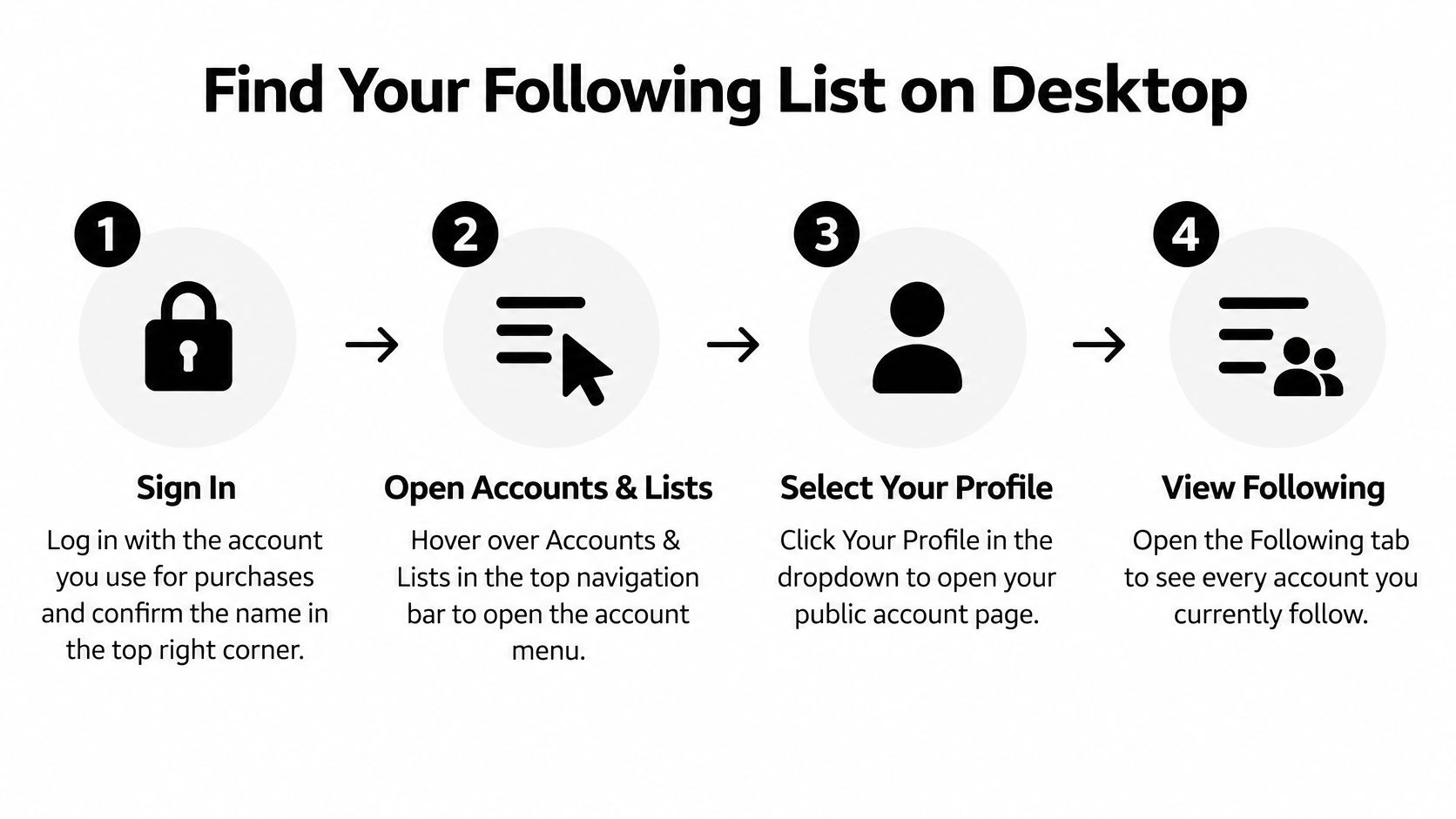
Confirm your shopping account. Sign in and check the name shown near the top-right corner. If you share the browser, verify the account details rather than relying on the greeting alone.
Hover over Account & Lists, then select the profile or account link available in your menu. If you land on the broader account page, look for the profile entry rather than opening order history.
Find Who You Follow or Following in the profile area and open it. Don't expect the label to occupy the same position in every account layout.
Read the entries before making changes. Look for authors, brands, and influencers, and distinguish a person's profile from a brand account. Open an unfamiliar name when you can't tell which it is.
Click a name to inspect its page, or use its Unfollow control if you no longer want to track it. Review the destination first when similar names make an entry ambiguous.
Reload the following page after making a change. Confirm that the entry has disappeared before continuing, rather than assuming the button press completed successfully.
The infographic provides a compact view of the navigation sequence. Match its labels to the closest options shown in your account.
Check the entries, not just the page
A useful review ends with recognizable names and entries that open to the profiles you intended to follow. For your own notes, group them as brands, authors, and creators; Amazon doesn't have to display those groups for you to organize them that way.
Watch for apparent duplicates, but inspect them before removing anything. A creator's personal profile and a similarly named brand account may serve different purposes.
If the menu option is absent, use the troubleshooting checks below. Don't assume another menu contains the list just because it includes the word account.
How to Check Your List in the Amazon App and Mobile Browser
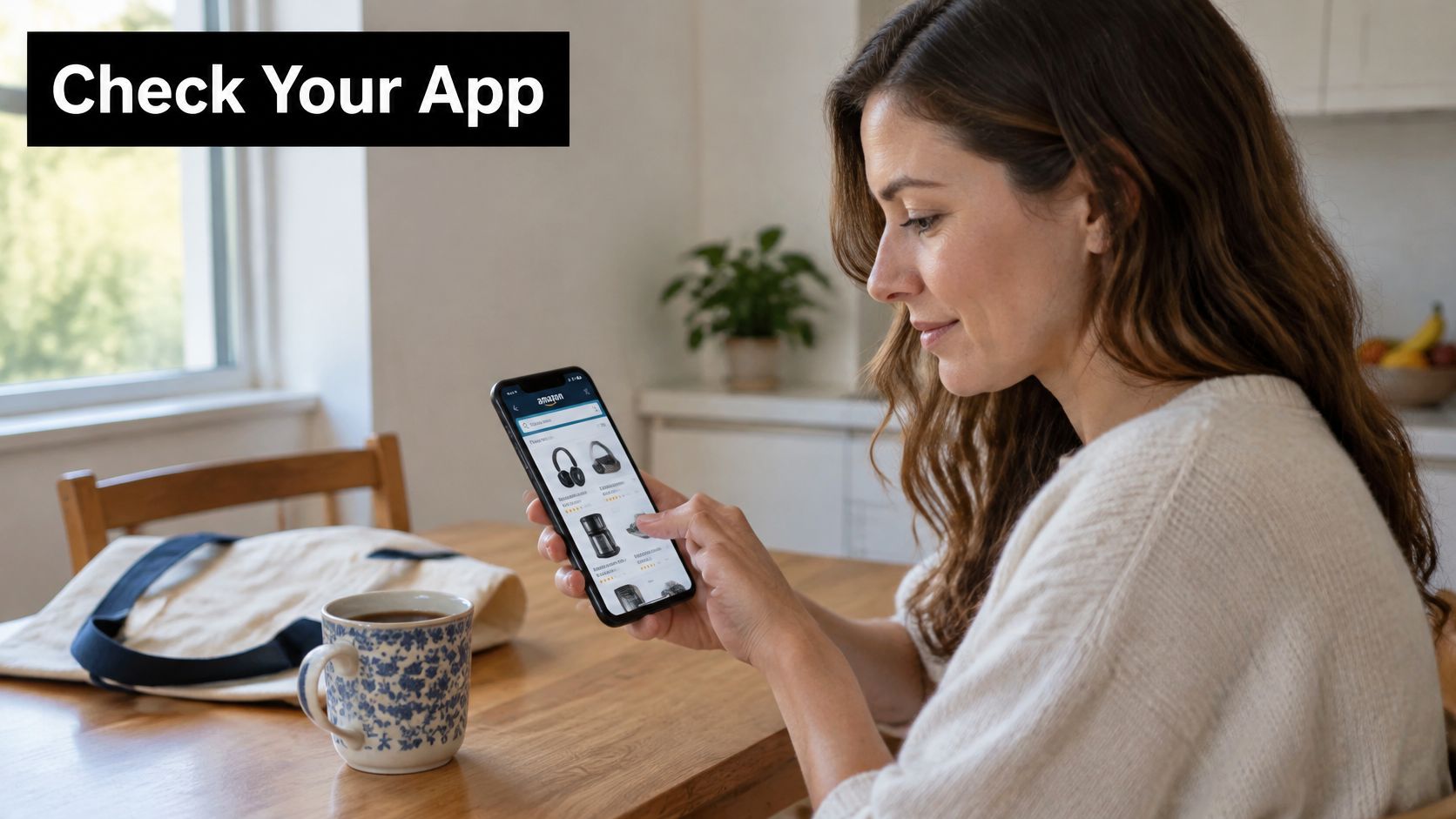
Want to check your follows while using your phone? Start in the Amazon app, where the profile menu is close at hand. The labels can vary by app version, so follow the path by purpose, not just by exact wording.
Start in the app
- Update and sign in. Update the Amazon app first so you are testing the current menu. Confirm that it is signed in to the profile you want to review.
- Tap Account at the bottom of the screen. Look for your name or a profile link, rather than a shopping category.
- Open your profile. Select Following or Who You Follow if either appears. If you don't see those options, try the browser route below instead of searching through unrelated settings.
Use the browser fallback
Open Amazon's Who You Follow page in your phone's browser and sign in there. The page lists followed authors, brands, and influencers, with options to open accounts or unfollow them.
Your app and browser can have separate sign-in sessions. Check that the browser is using the profile you want, even if the app is already signed in.
If the page feels cramped or its buttons are difficult to tap, choose Request Desktop Site or the equivalent option in your browser menu. Request Desktop Site changes the layout only; the list stays tied to the same signed-in profile.
The list belongs to the signed-in profile, not to the phone.
Scroll through the names and open an entry when you need to identify it. Account types may not be labeled, so checking the profile page can help you recognize who or what you followed.
Why the Following List Looks Empty or Wrong
A following list can look different across accounts, browsers, or profile settings. Use the table to narrow the likely cause, then test the first fix.
| Symptom | Likely cause | First fix |
|---|---|---|
| Empty list | Signed in to a second or older account | Confirm the account as described in the desktop steps above, then sign in with the shopping account |
| Brand missing from list | Brand followed as an interest, not an account | Check followed interests separately |
| Option missing from menu | Label or regional layout differs | Try another route from the first section's table |
| Profile section unavailable | Profile visibility settings or access issue | Review visibility controls on the Profile page |
| List differs between browsers | Different sessions or cached pages | Sign in again in the same browser and refresh |
| Unfollow did not stick | Page loaded before the change | Reload the page, then recheck the list |
Check visibility and followed interests
Profile visibility controls affect what other people can see on your public profile. If you want to limit what appears there, review those controls rather than unfollowing accounts.
A missing brand may be listed as a followed interest instead of a followed account. Check interests separately before concluding that the brand is missing.
Clear a stale session carefully
If the list still looks wrong, work through these checks in order:
- Sign out and back in. Use the shopping account whose follows you want to inspect.
- Check the browser session. Close an old following-list tab and reopen the page after signing in.
- Refresh before concluding. Reload the page and inspect the relevant name again.
Avoid repeatedly following and unfollowing the same account while troubleshooting. It can make it harder to tell whether the original issue is fixed.
If the profile remains unavailable, use Amazon's customer-service options rather than changing unrelated account settings. Note the device, browser, and symptom so you can describe the problem clearly.
Saving a Copy of Your Following List
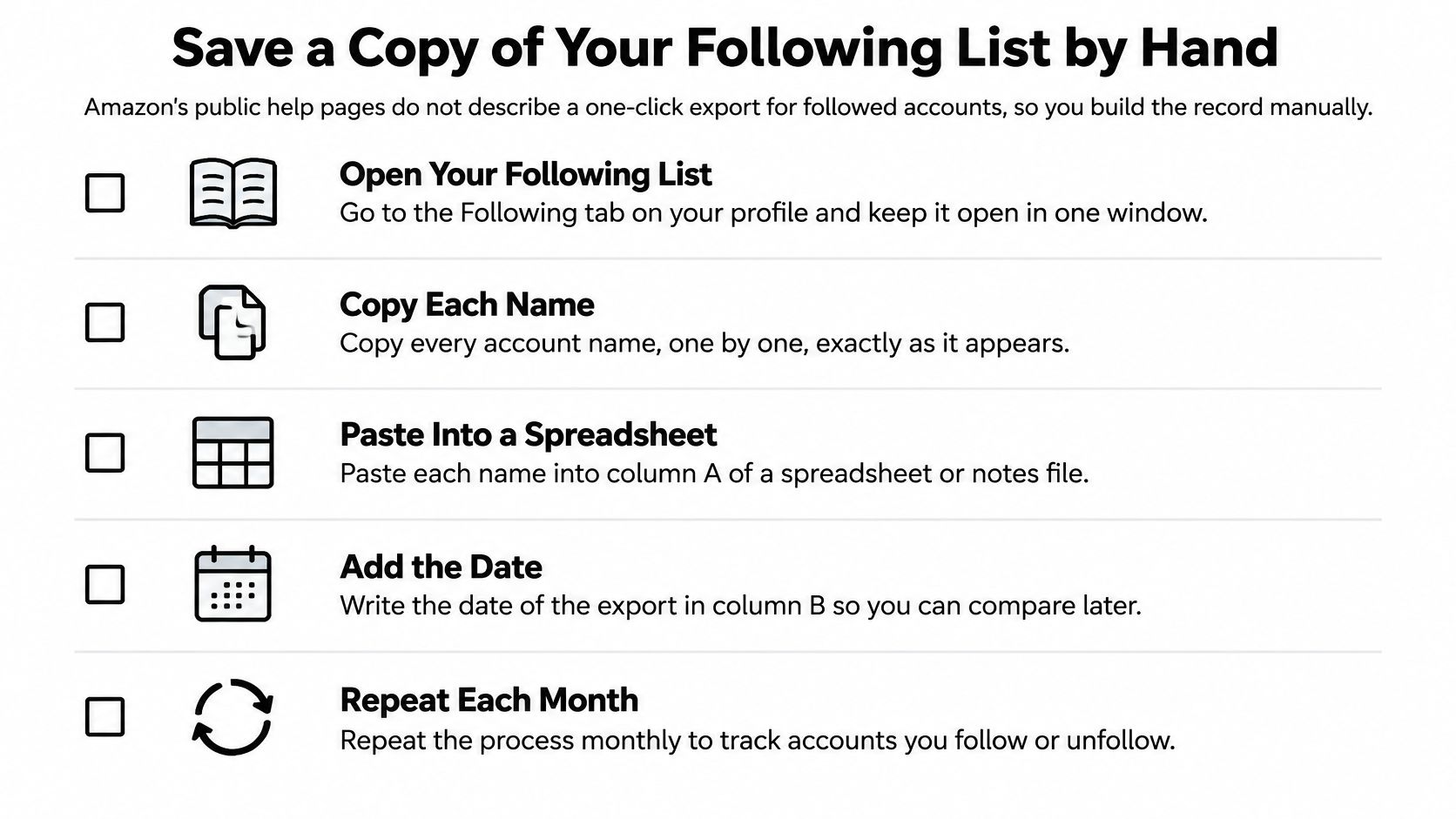
Amazon's public help pages don't describe a one-click export for followed accounts, so build your working record by hand. A spreadsheet is useful because you can sort entries, note decisions, and compare later checks without relying on memory.
Build a record you can maintain
Keep the following list open beside a spreadsheet with these columns: Name, Type, Date checked, and Action. Put the account identifier in the sheet title or a note above the columns, so records from different shopping profiles don't get mixed together.
- Confirm the account first. Check the signed-in profile before copying any names.
- Copy names exactly. Preserve the spelling shown on Amazon, especially where similar brand names could cause confusion.
- Assign a type. Mark each entry as a brand, author, or creator after checking its profile when necessary.
- Record the decision. Use actions such as keep, inspect, or unfollow, and enter the date you checked.
- Capture supporting screenshots. Save each scroll position with the date in the filename, keeping enough overlap to avoid missing an entry.
The checklist below offers a visual reminder of the manual process.
Turn the copy into a review
Say a shopper has 40 follows. They sort their sheet into brands, authors, and creators, then mark entries that no longer match their recent purchases or reading interests for inspection before unfollowing.
Keep screenshots private if they reveal interests you don't want to share. Crop unrelated account details before sending an image to someone helping you troubleshoot.
Recordkeeping tip: Use a quarterly reminder, or review after a substantial change in your buying interests.
An account-data request through privacy settings may return useful account information, but it can take time and may not itemize follows. Treat that as a backup possibility, not a dependable replacement for your manual record.
Frequently Asked Questions
Can I see who I follow without the app?
Yes. Amazon's mobile browser and desktop site both provide access to followed accounts, so you can use whichever is easier to read.
Why is a brand missing from my list?
A followed interest and a followed account may be listed separately. Check your interests, and make sure you're looking for the brand's account rather than a storefront you've visited.
Can I export my following list?
There's no one-click export described here; see how to save a copy of your following list for a manual option.
Are my follows visible to other shoppers?
Your follows may be visible depending on your profile's privacy settings. Check the Profile page to review those settings. Amazon Creator Connections is a separate program for creator and seller activity, not a control for your personal follows.
Why does my list differ between browsers?
Check the account name shown in each browser's Amazon account menu. If the browsers are signed in to different shopping accounts, they can show different follow lists.
Review Your Follows and Decide What to Keep
A follow is useful when it helps you compare products, track an author's releases, or find content you want to revisit. Consider removing accounts that are inactive, off topic, or duplicative.
Review your saved sheet one type at a time. An author may be worth keeping for future releases even if you haven't bought a book recently. A brand connected to a hobby you've left behind may no longer need a place on your list.
Make each decision specific
- Keep for a clear reason. Record the product category, writing, or practical advice you want to see again.
- Inspect uncertain entries. Open the profile before removing a name you don't recognize.
- Check possible duplicates. Compare the profiles before deciding that similar names belong to the same account.
For broader product or brand discovery, use Amazon storefront search. It can help you find sellers beyond the accounts already on your following list.
Sellers exploring TikTok Shop can use a followed creator's product as a starting point for evaluation. For example, a seller might compare the product's selling price with its cost, ad spend, and commissions to see what margin remains. An Amazon follow can point to an item worth investigating; the seller's own shop figures show how it performs there.
HiveHQ's Profit Dashboard gives TikTok Shop sellers real-time net profit, product-level performance, and customer analytics. Visit HiveHQ to try the dashboard and use shop data to guide decisions. HiveHQ also offers setup help for US and UK TikTok Shops.